
The Vault
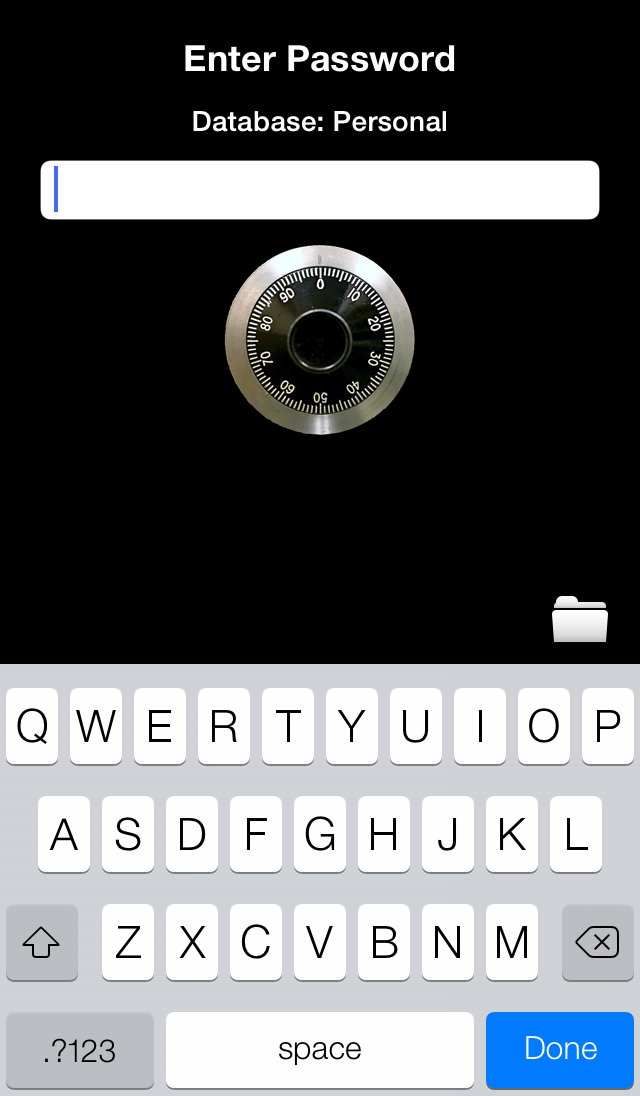
This screen is the first you will see when using The Vault. You must enter your password in order to view or edit your confidential data. The first time you run The Vault it will ask for a New Password. Try to use a password that you will remember but will be hard for others to guess.
Here are some general password guidelines:
- Don't use very short passwords.
- Avoid passwords based on repetition, dictionary words, letter or number sequences, usernames, relative or pet names, romantic links, or biographical information (e.g., ID numbers, ancestors' names or dates).
- Include numbers, and symbols in passwords.
- Use capital and lower-case letters.
- Avoid using the same password for multiple sites or purposes.
- Avoiding using something that the public or workmates know one strongly likes or dislikes
- A numeric PIN is also usable.
When you enter the new password, you will be requested to verify it by entering it again. Your password is used to encrypt the data when stored on your iOS Device and to decrypt the data for viewing. You can change your password later by using the Tools menu which you can get to by tapping the Tools button on the bottom Tab Bar of the other screens. In the "Settings" tool, you can select whether the entire password will be shown while you type, or just the last letter typed as you are typing.
The file folder icon on the lower right of the password entry screen allows you to enter a database recovery mode without entering a password. Should you need to create a new database, or open a different one, without entering the password for the current database, you can do so by tapping on the file folder icon and using the menu that appears.
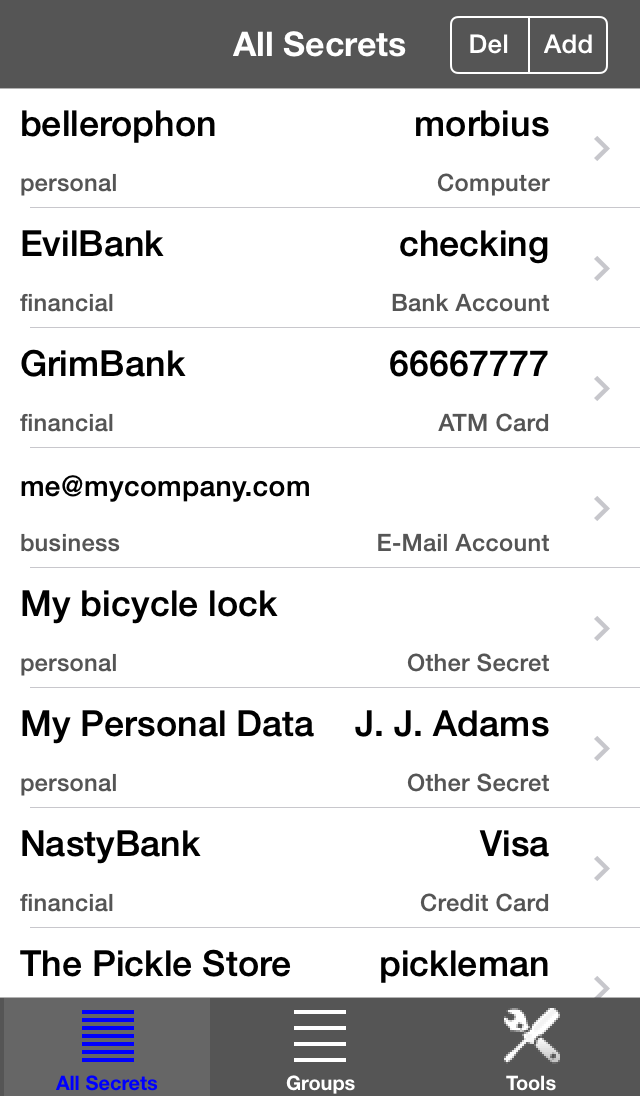
This screen shows you all your secrets. You should see this screen when you select the All Secrets button on the bottom Tab Bar. On the top left of each secret, in large type, is the Identification of the secret. The information shown here depends on the type of secret. On the bottom left, in smaller type, is the Group that the secret has been assigned to. On the top right may be other information that is used to further identify the secret. On the bottom right is the type of secret.
You can scroll through them and select one to view or edit. If you tap on the > symbol on the right side of one of the secret entries, you will be shown the detail screen for that secret.
To edit the secret, tap on the "Edit" button on the top right.
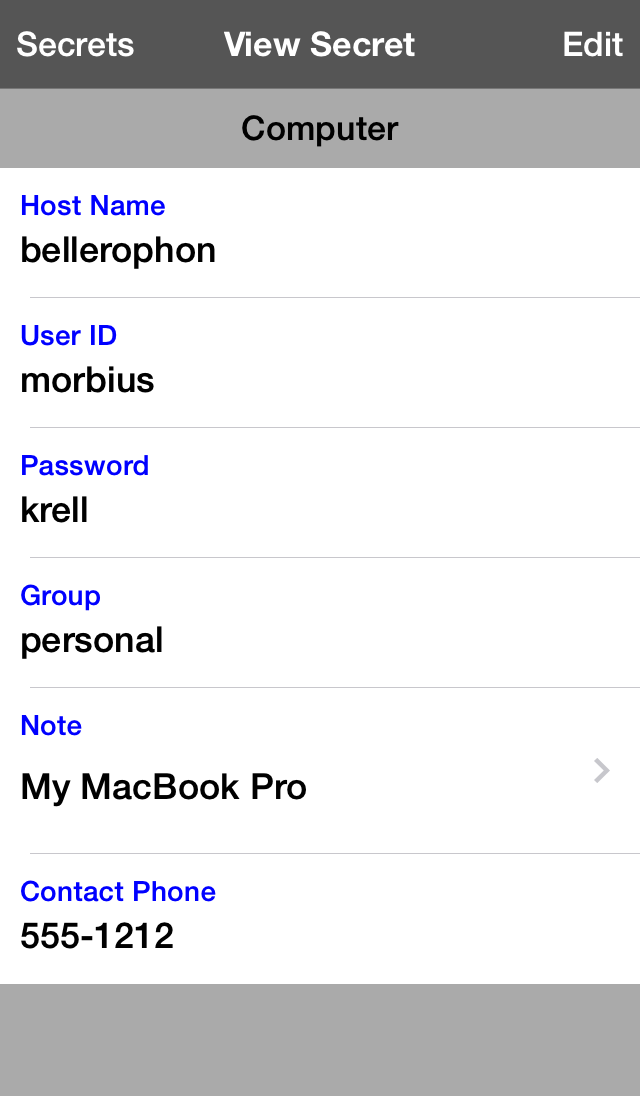
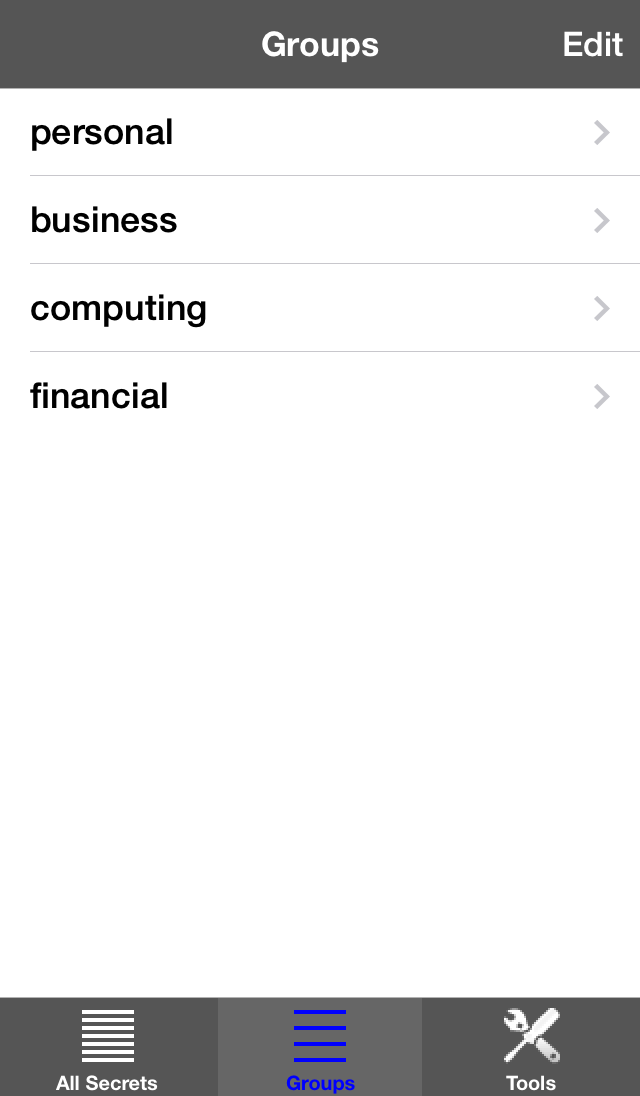
This screen shows all the groups. You should see this screen when you select the Groups button
on the bottom Tab Bar. You select a group to see all the secrets assigned to that group.
You can add or delete groups by using the Edit button on the top right.
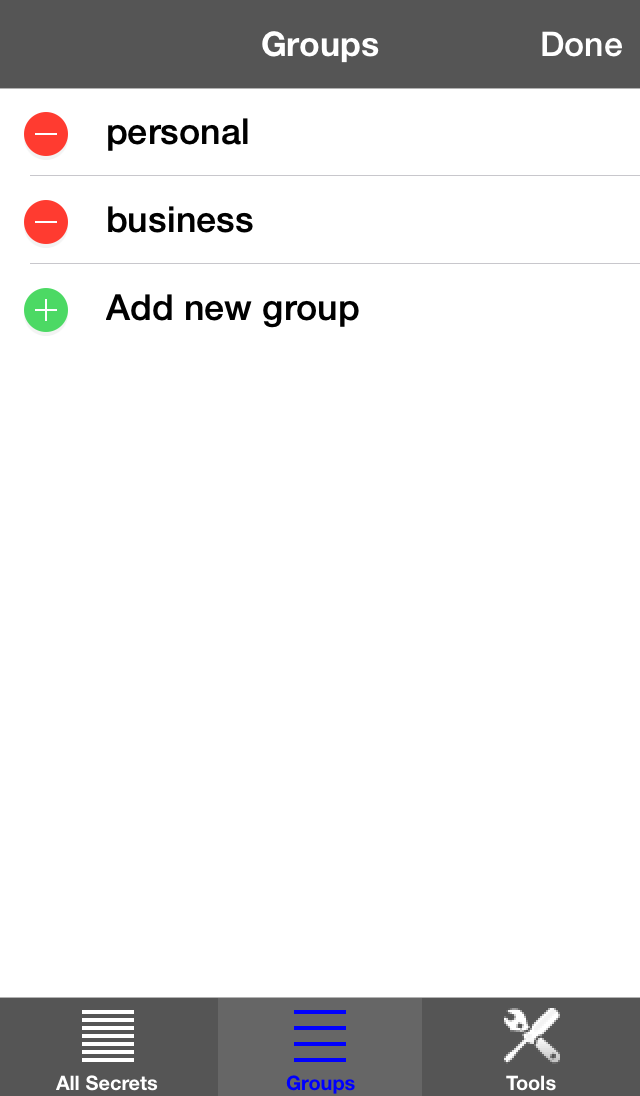
The Vault installs two groups automatically when it is first started, Personal and Business. You can delete these groups if you don't want them. All items that are not assigned to a group are automatically placed in to the "(unassigned)" group, which cannot be deleted. The "(unassigned)" can be hidden from the Groups List, via the Settings Tool.
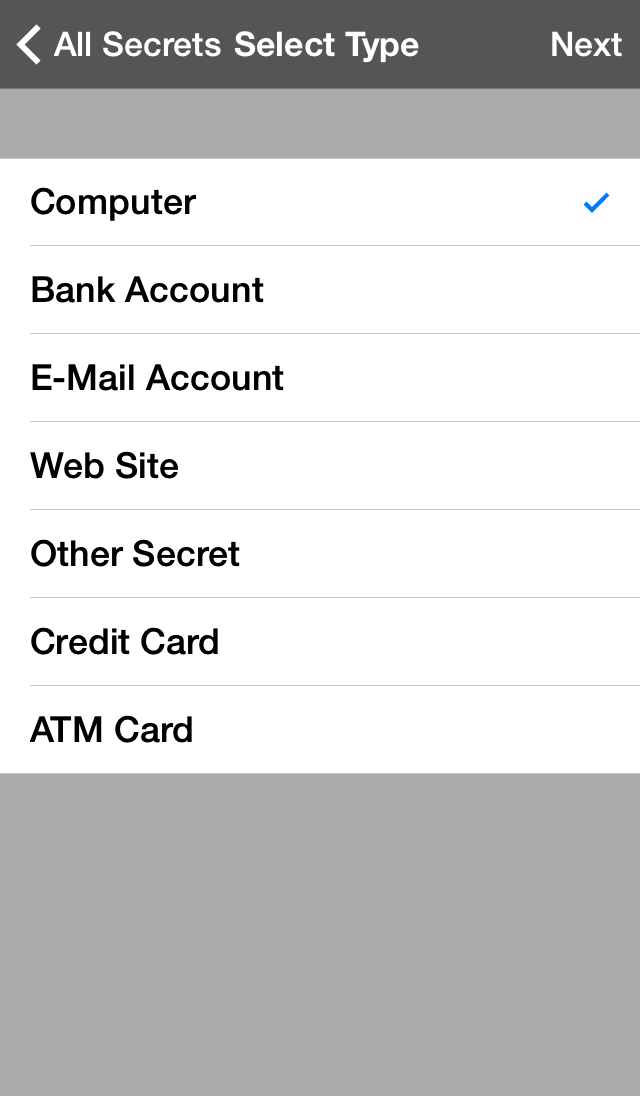
This screen is what you see when you add a secret. It allows you to select the type of secret you want to add. Each type of secret has different pieces of information that apply to that type. For example, a computer secret has a computer name, a user identification and a password. All secret types are assigned to a group and have an area for Notes.
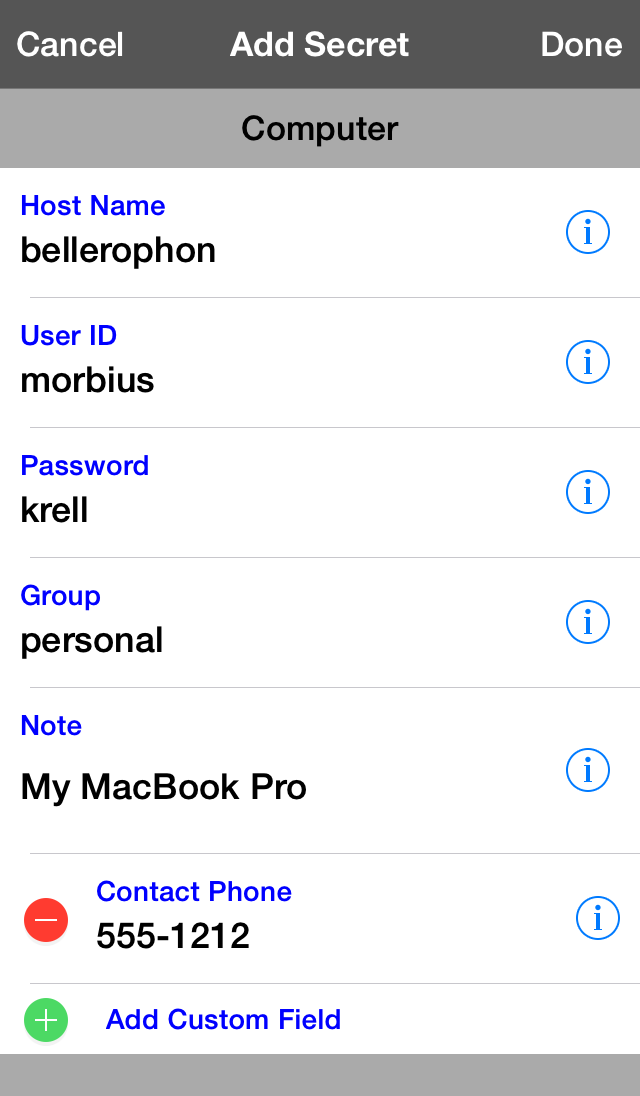
This screen is the screen that allows you to add or edit a Computer secret. There are similar screens for each of the different secret types containing the information fields that apply to that type of secret. You can ignore any fields that you don't want to fill in except the first one which is the identification of the secret and is used to sort the secrets alphabetically. Any field that you leave blank will not be shown in the detail view of a secret. You can also add or delete custom fields which have custom titles, however a particular custom title can only be used for one field in a secret, i.e. you cannot have two fields called "Hair Color". You will have to name them "Hair Color 1" and "Hair Color 2".
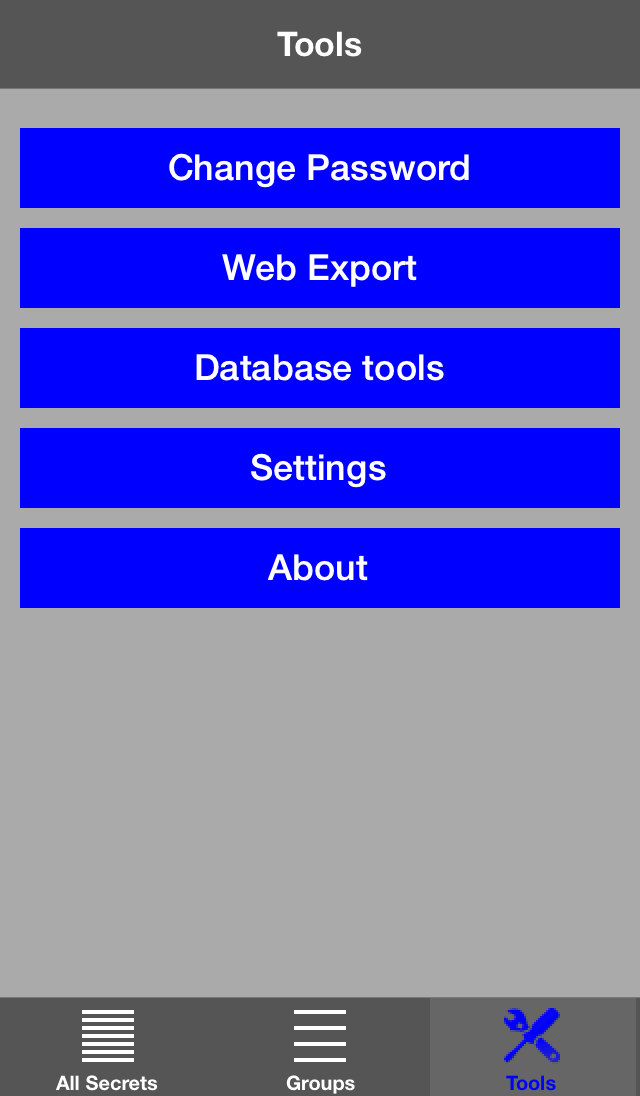
This screen shows the Tools menu. From here you can change your password, export your secrets via WiFi connection, manage your databases, change program settings, or view the information about the program.
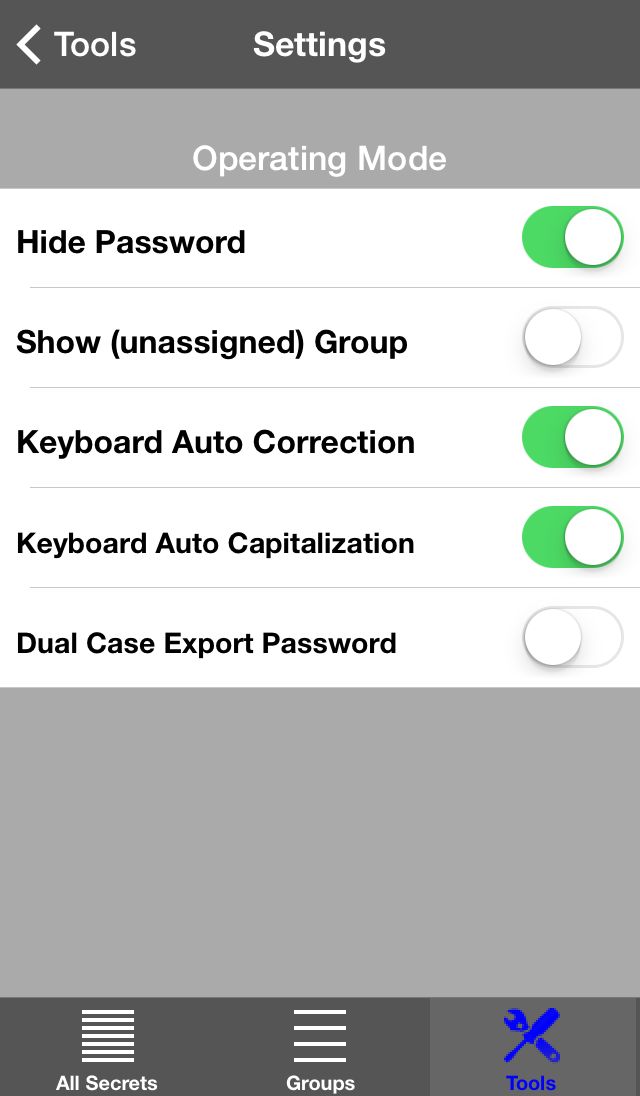
This screen shows the Settings page. The settings allow you to...
- When entering the main password, you can hide the typed keys (except the last one typed, to allow for error-checking), or show all the typed keys.
- The items that are not assigned to a group are automatically assigned to a permanent group called (unassigned). This setting allows you to show or hide that group.
- During Notes entry, the keyboard auto-correction feature can be turned on or off.
- During Notes entry, the keyboard auto-capitalization feature can be turned on or off.
- The export password, which is a one-time password used to authorize access to your data when the Web Export tool is used, can be set to DualCase, or for easer typing, just lowercase.